
What is EU-PID?
From 1 November 2026, new EU customs requirements will apply to relevant products sold online and shipping from outside the European Union (EU) to buyers in the EU, where the intrinsic value does not exceed Euro 150.
Under these requirements, Product Identifiers (“PID”) information must be provided to help EU customs authorities identify the products being shipped.
The following product identifiers are required:
Merchant Product Identifier
MandatoryAn identifier used by the seller or marketplace to identify the product, such as the eBay Listing ID/SKU ID, available under the “About this item” section of your listing.
Non-Standardized Manufacturer Product Identifier
MandatoryA product code assigned by the manufacturer, producer, or supplier, such as a Manufacturer Part Number (MPN), model number or style code.
Standardized Manufacturer Product Identifier
Required where availableAn internationally recognized product identifier, such as a GTIN, EAN, UPC, or ISBN.
How does EU-PID work on EGS?
eBay Global Shipping (EGS) platform allows you to create and save an EU-PID profile for your products. Once created, these profiles can be selected during shipment booking.
Key benefits
How to Add an EU-PID Profile
Follow these steps to create a new EU-PID profile on the EGS platform.
Step 1: Navigate to the EU-PID Section
- Log in to your eBay Global Shipping account.
- From the left navigation menu, select EU-PID.
- The EU-PID page will display your existing profiles, if any.
- Click Add Product/SKU to create a new profile.
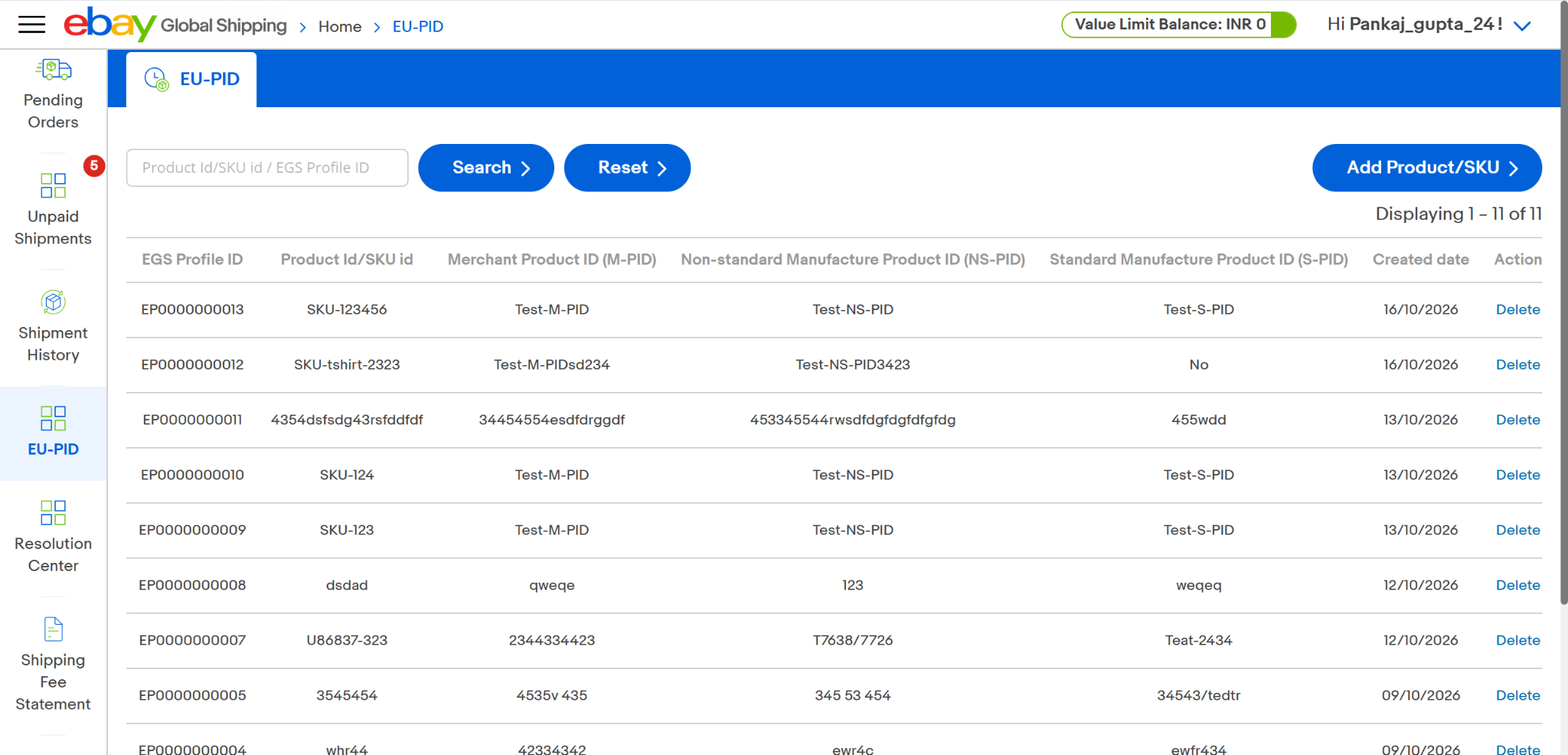
Step 2: Enter EU-PID Details
An Add EU-PID Details pop-up window will appear. Complete the following fields:
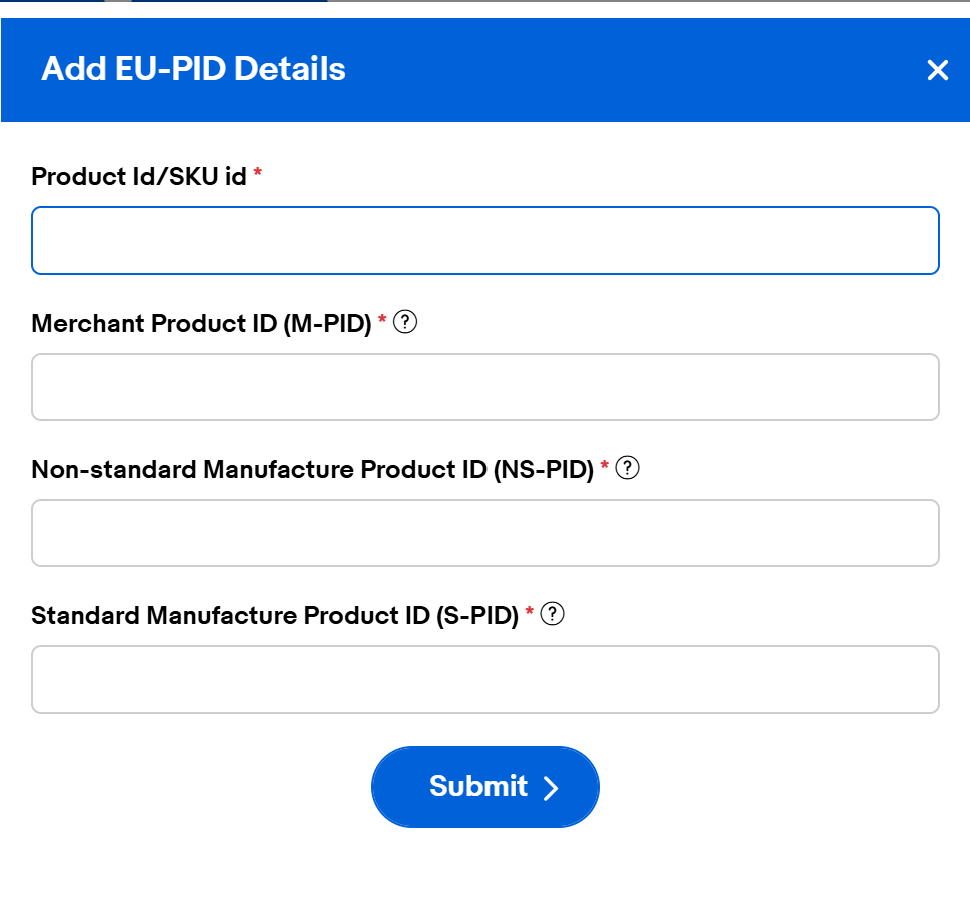
| Field | Information required |
|---|---|
| Product ID/SKU ID | Enter the product ID or SKU ID for the product. |
| Merchant Product ID (M-PID) | Enter the relevant merchant product identifier, such as eBay Listing ID. |
| Non-Standardized Manufacturer Product ID (NS-PID) | Enter the applicable manufacturer or supplier product code. |
| Standardized Manufacturer Product ID (S-PID) | Enter the standardized product identifier, where applicable. If none exists, follow the instructions displayed on EGS Platform (i.e., enter “Y081” or “No” when no S-PID exists; please do not leave this field blank). |
Step 3: Submit the EU-PID Profile
- Review the information for accuracy.
- Click Submit.
- Once saved, the profile will appear in your EU-PID profile list with a unique EGS Profile Id.
How to View and Manage EU-PID Profiles
Go to the EU-PID section to view your saved profiles. The profile list displays:
| Column | Description |
|---|---|
| EGS Profile ID | Unique reference ID assigned to the saved profile. |
| Product ID/SKU ID | Product or SKU associated with the profile. |
| Merchant Product ID (M-PID) | Merchant product identification information. |
| Non-Standardized Manufacturer Product ID (NS-PID) | Non-standard manufacturer product identification information. |
| Standardized Manufacturer Product ID (S-PID) | Standard manufacturer product identification information. |
| Created Date | Date on which the profile was created. |
To search for a Profile
- Enter the Product ID, SKU ID, or EGS Profile ID in the search field.
- Click Search to view matching records.
- Click Reset to clear the search and return to the complete profile listing.
To delete a Profile
- Locate the relevant profile in the EU-PID list.
- Click Delete.
- Follow the confirmation instructions, if prompted.
How to Select an EU-PID Profile During Shipment Booking
After creating an EU-PID profile, you can select it against the relevant product during shipment booking.
Step 1: Start Shipment Booking
- Start a shipment booking on the EGS platform.
- Complete the initial booking details.
- Proceed to Step 2: Shipment Details.
Step 2: Locate the Product
- Find the relevant product under the buyer’s shipment details.
- Locate the EU-PID dropdown next to the product.
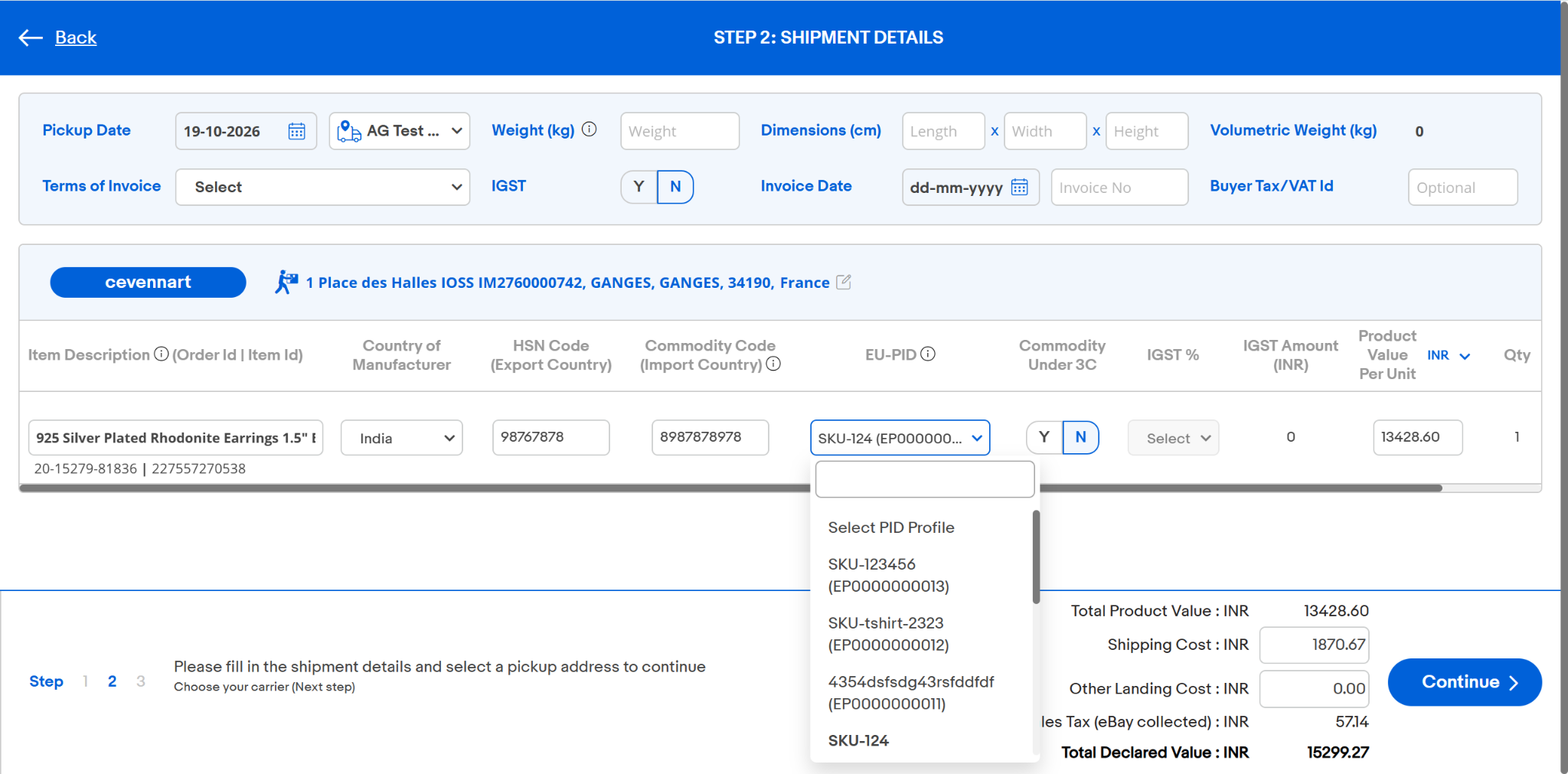
Step 3: Select the Correct EU-PID Profile
- Click the EU-PID dropdown.
- Select the saved profile matching the product’s SKU ID or Product ID.
Step 4: Verify and Continue
- Confirm that the correct EU-PID profile is selected.
- Complete the remaining shipment and customs details.
- Continue with the shipment booking.
Important Guidelines
- Create EU-PID profiles before booking shipments subject to the new EU requirements from 1 November 2026.
- Ensure that all Product Identifiers are accurate and match the relevant product.
- Select the correct EU-PID profile for each applicable product during shipment booking.
- Review saved profiles before using them.
- Avoid deleting profiles that may be needed for future shipments.
Frequently Asked Questions (FAQs)
Go to the EU-PID section on the EGS platform and click “Add Product/SKU”.
Yes. You can create separate profiles for different products or SKUs.
You can search using the Product ID, SKU ID, or EGS Profile ID in the EU-PID section.
You can select the relevant profile from the EU-PID dropdown in Step 2: Shipment Details.
Yes. Saved profiles can be reused for future shipments for the same products, provided the information remains accurate.
Check whether the profile exists in the EU-PID section. If necessary, create a new profile and return to the shipment booking.
Yes. Use the Delete option in the EU-PID profile list.
Before completing the booking, reopen the EU-PID dropdown and select the correct profile.
Follow the instructions provided on the EGS Platform for products without a standardized identifier. If you need assistance, contact EGS Support Team.
Need Assistance?
If you need help creating or selecting an EU-PID profile, please contact the EGS Support Team through the Resolution Center.
To help us assist you, please provide your Product ID/SKU ID, EGS Profile ID (if available), and a brief description of the issue.